VISIBLE Bingo is identity bingo: each theme (Heroes, Holidays, Animals, ...) is a set of entries with short bios and tags. An admin builds a game and prints the cards; a caller draws the entries one at a time and reads them out; players who can't hear can follow along on their phones (The watch page: following on a phone). People sign in with a name and PIN, at one of two levels:
What you can do
Caller
Admin
Call a saved game, show the watch code, change the win pattern
Yes
Yes
Build games and print cards
–
Yes
Edit themes, tags and entries
–
Yes
Every entry in the contents, and every link in the text, jumps to that topic. The pictures show a sample organization with a made-up Animals theme.
Getting started
Signing in, access levels, the theme, and your account.
Opening VISIBLE Bingo and signing in
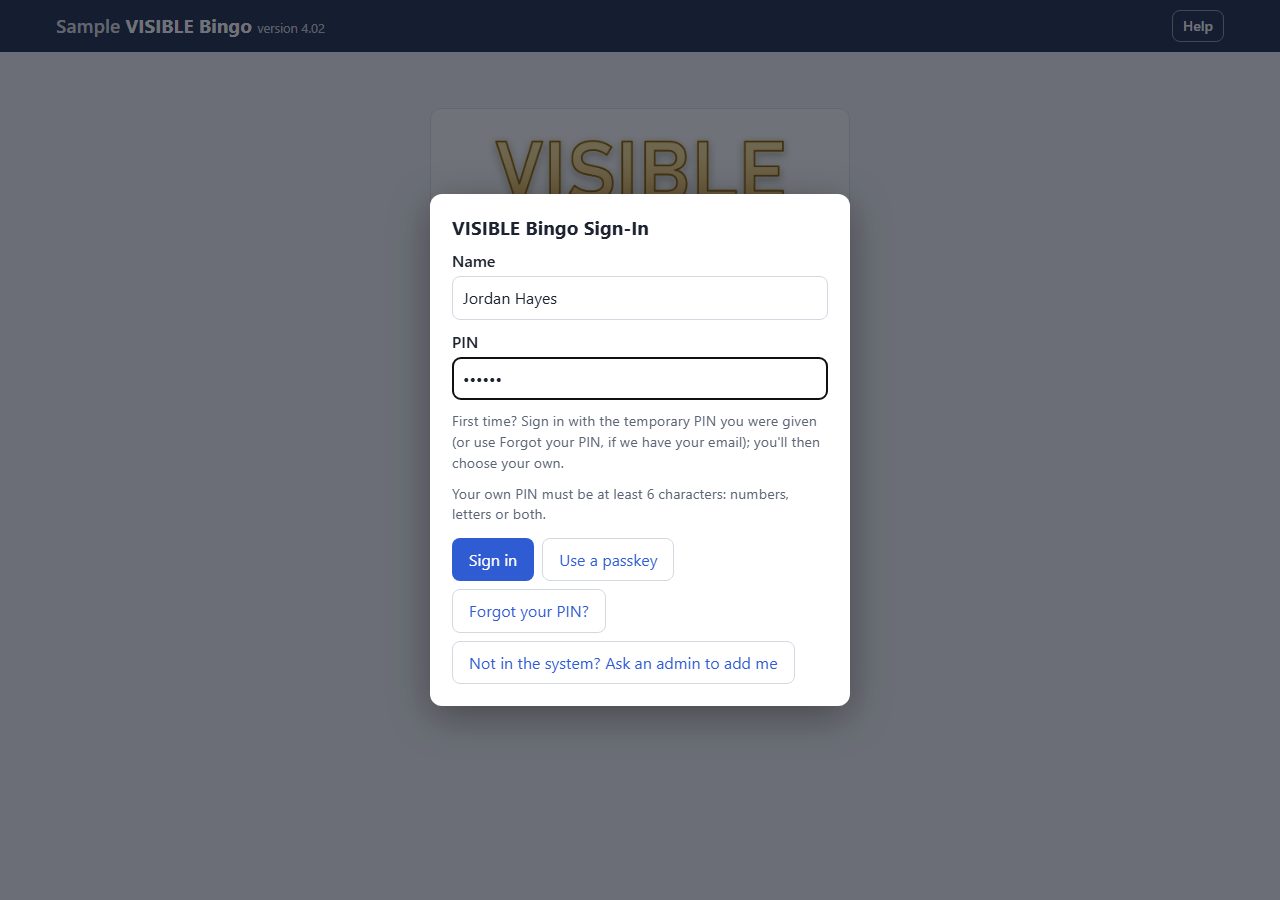
Open VISIBLE Bingo in your browser. After the VISIBLE splash, the sign-in box opens and asks for your name and PIN every time. Type your full name and your PIN, then tap Sign in. A PIN is at least 6 characters: numbers, letters or both. If you have forgotten your PIN, tap Forgot your PIN? and a code is emailed to you. Players don't sign in at all; they use The watch page: following on a phone.
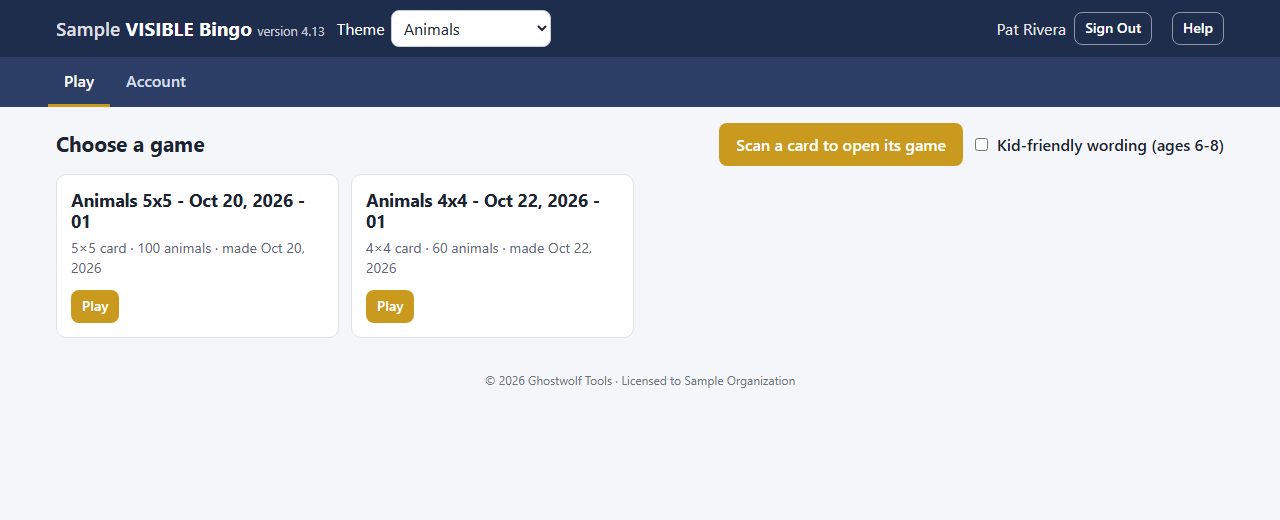
With caller access you see Play and Account: you can run any saved game (Choosing a game to play). Building games, printing cards and editing themes need admin access. Your access is set on your site's permissions page.
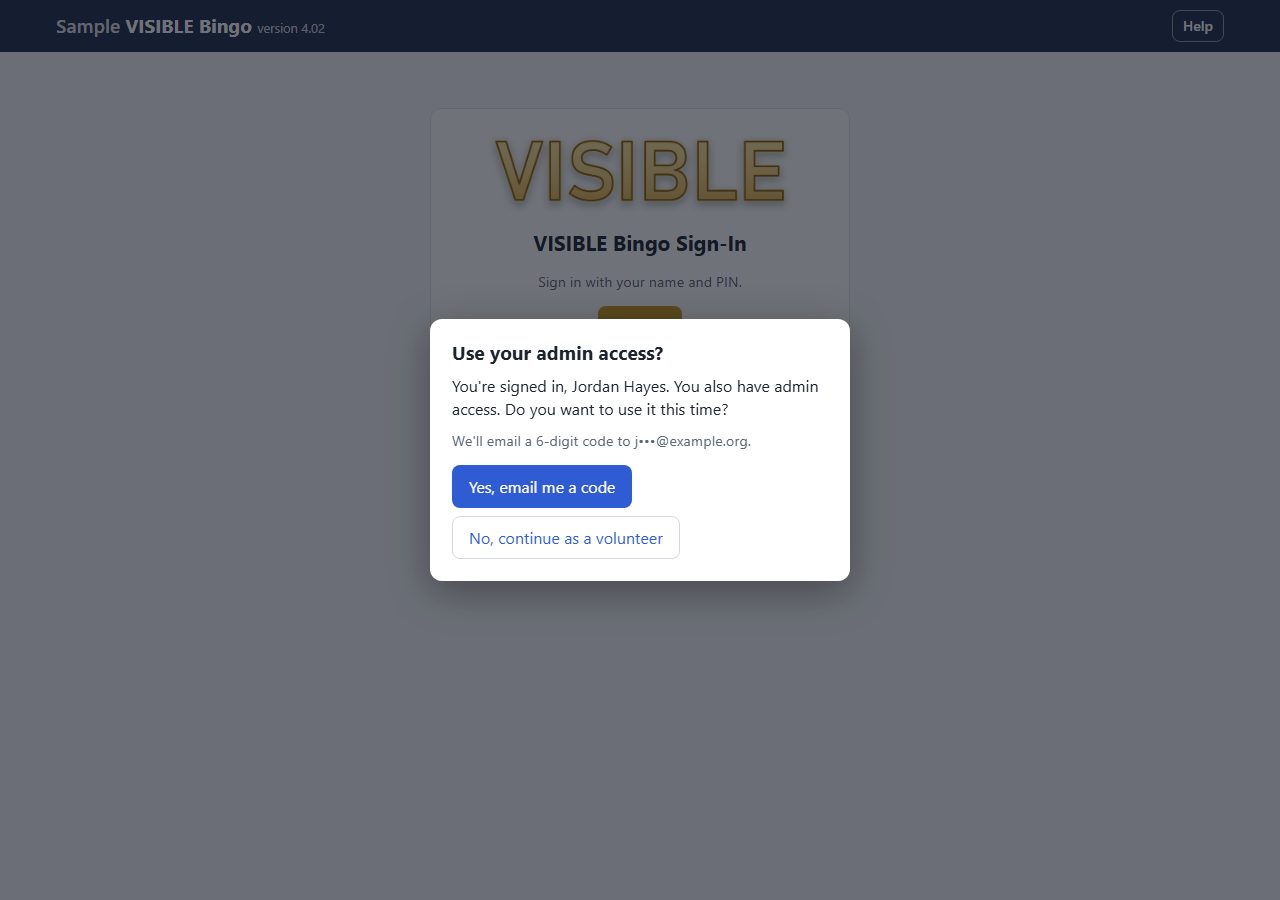
Everyone signs in at the caller level first. If you hold admin access, a box then asks Use your admin access? Tap Yes, email me a code, or No, continue to stay a caller; the Admin access button in the header lets you step up later.
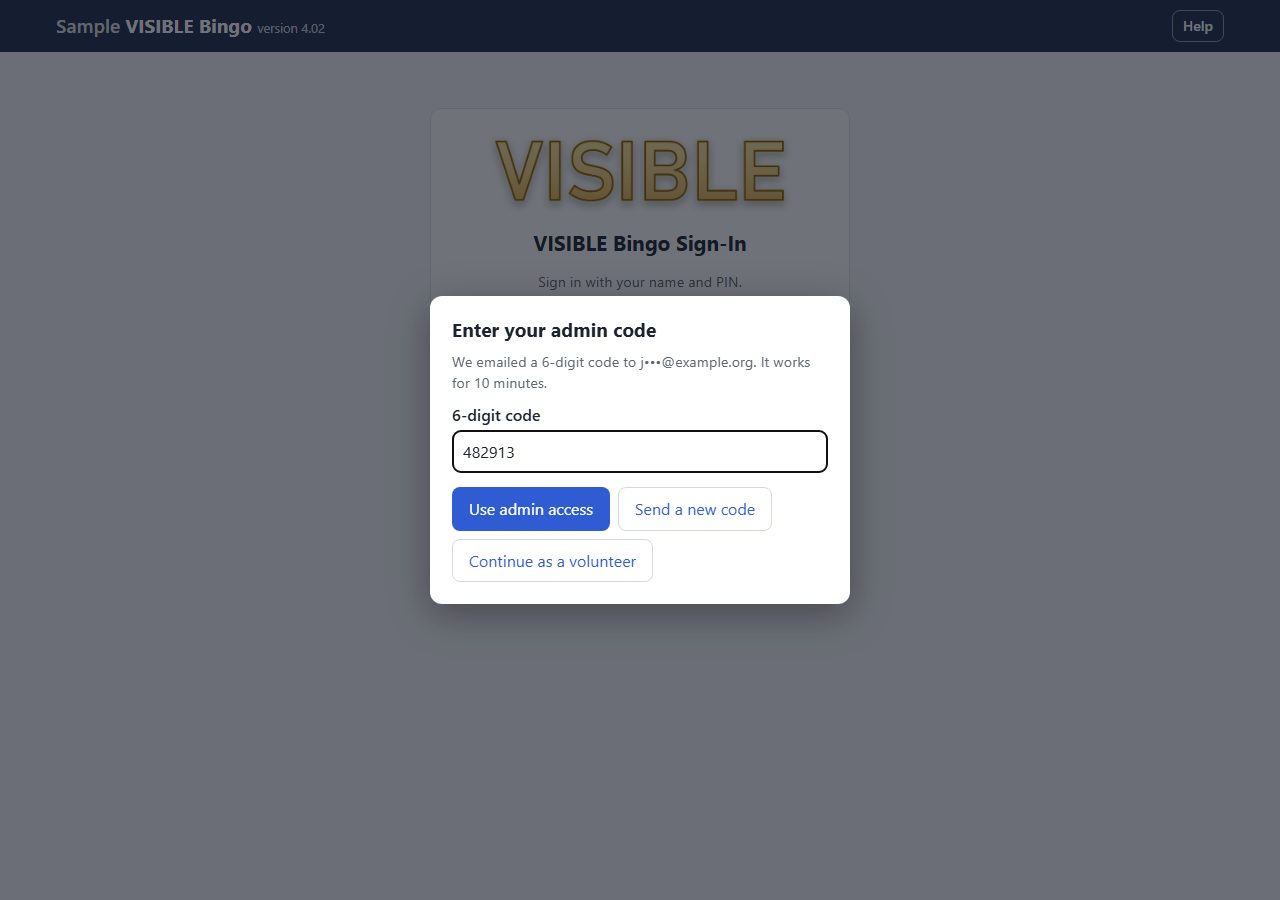
Type the 6-digit code from your email and tap Use admin access. The code works once and expires in 10 minutes; Send a new code sends another. Admins also see Build a Game, Print Cards and Themes & Entries.
The Theme box in the header picks the theme you are working in (for example Heroes, Holidays or Animals). Every screen shows that theme's games and entries. The app remembers your choice on this device. Switching themes while a game is being called ends that game, so the app asks first.
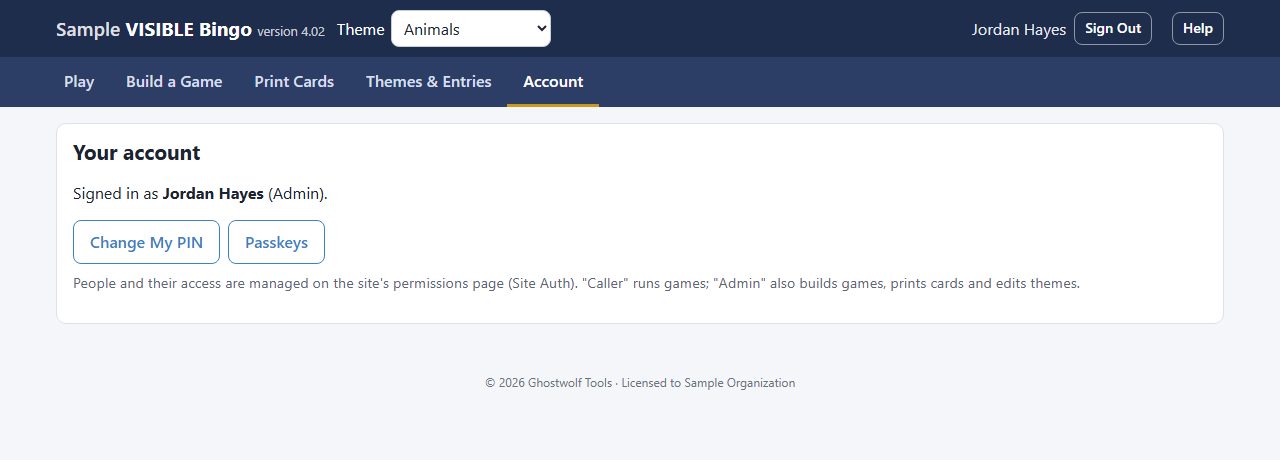
Account shows who you are signed in as and at what level. Change My PIN asks for your current PIN and the new one twice. Passkeys lets this phone or computer sign you in with your fingerprint, face or screen lock instead of typing your PIN; your PIN still works.
If your organization's license isn't active, a notice says VISIBLE Bingo is paused and nothing can be changed or saved. Tell a site admin; once the license is renewed the notice clears.
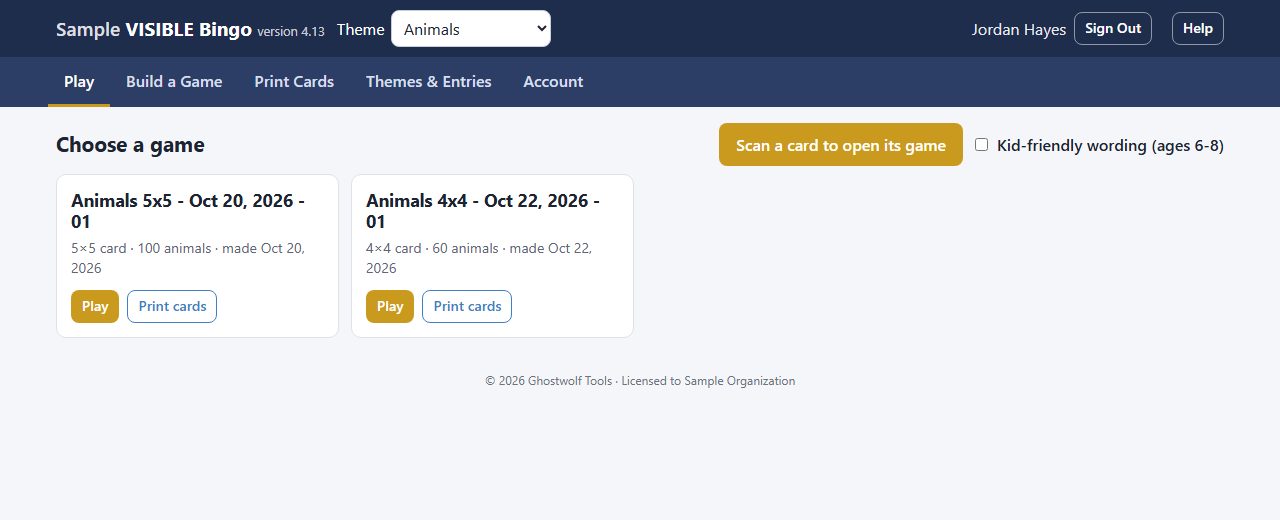
Play lists the theme's saved games, each with its card size, how many entries it uses and when it was made. Tap Play on the game whose cards were handed out, or tap Scan a card to open its game and let the card pick the game for you (Scanning a card to open its game). Tick Kid-friendly wording (ages 6-8) to read the simpler kid bios instead of the regular ones.
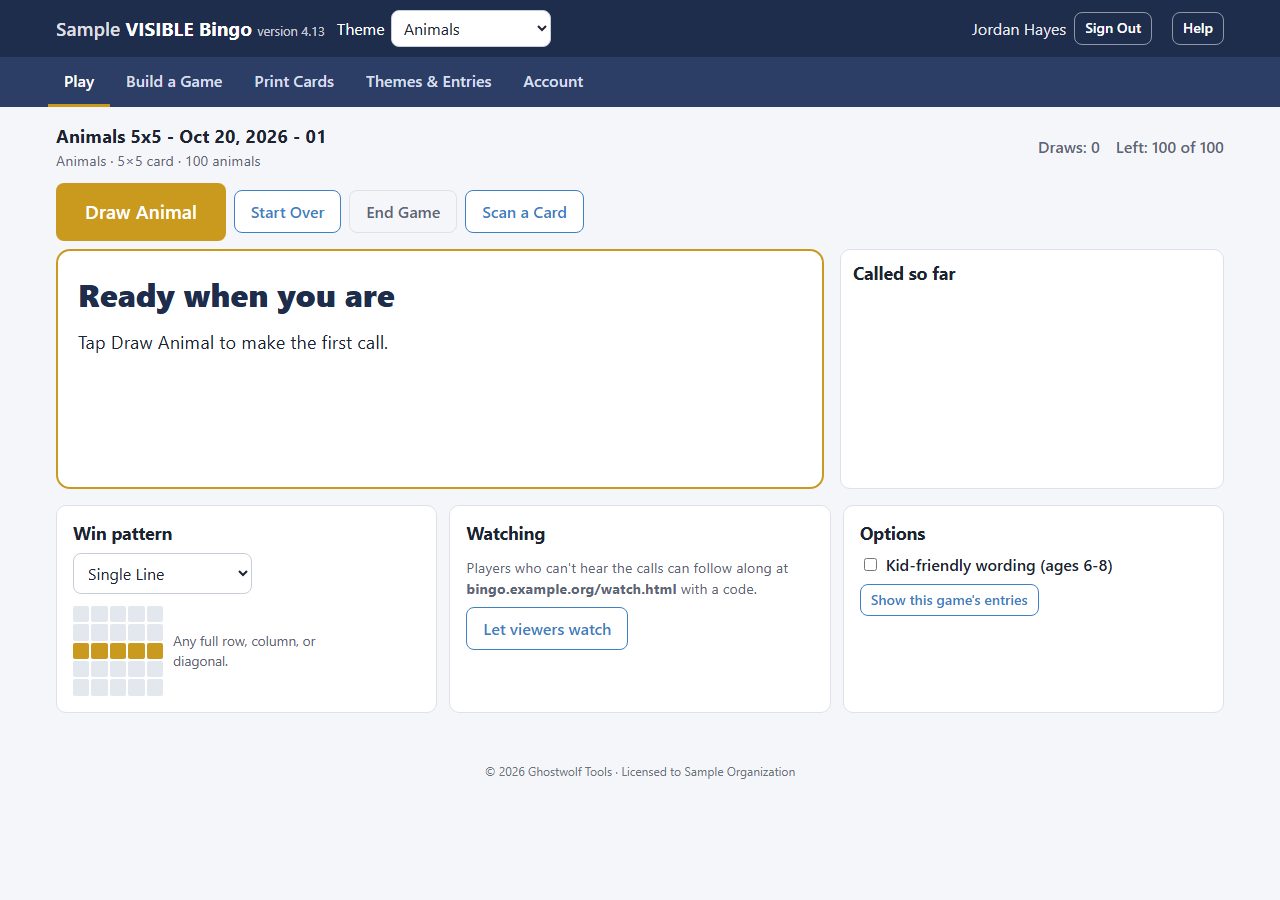
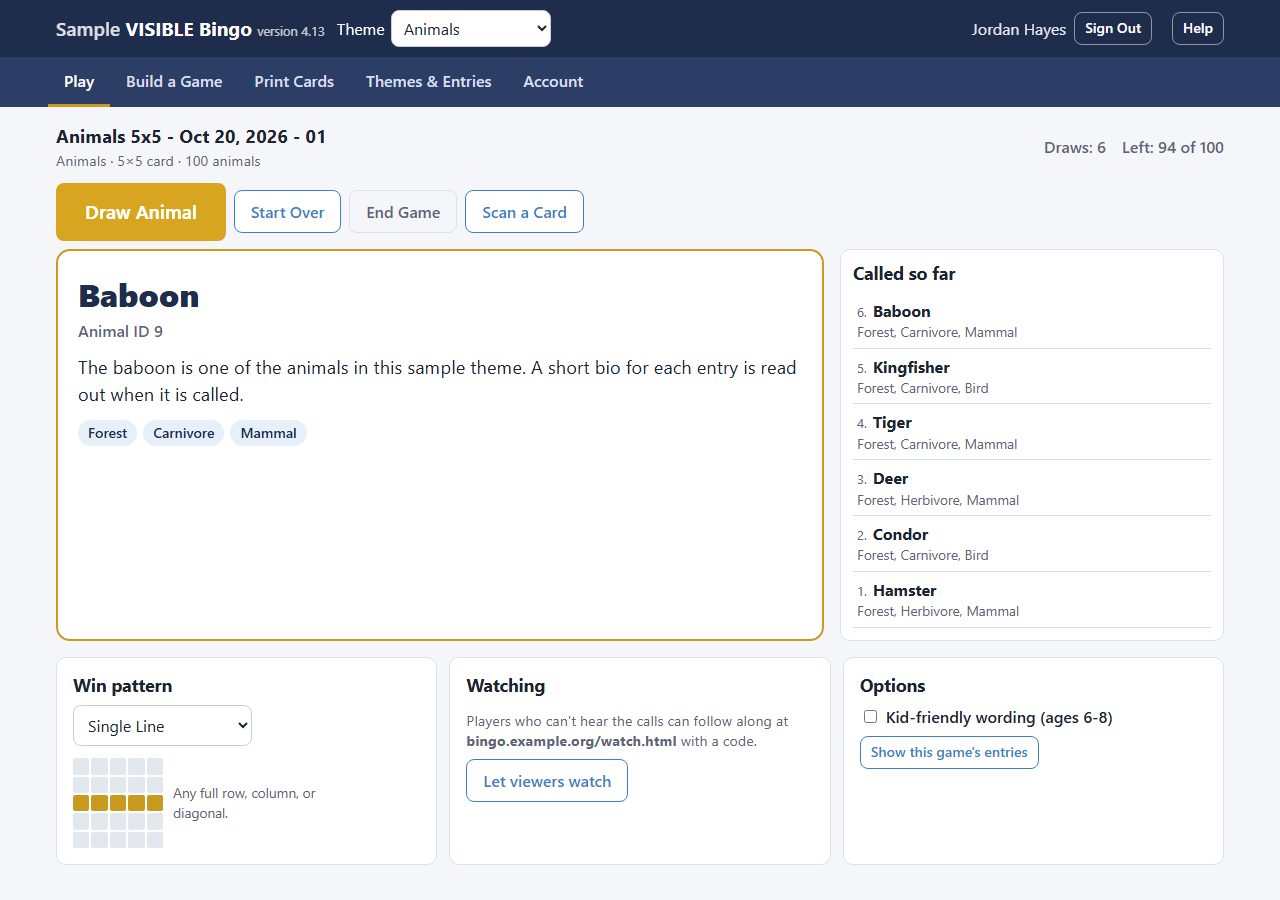
The game opens ready to call: its name at the top, with the theme, card size and how many entries it has under it (check these against the cards in the room), Draws and Left counts on the right, and the big box that shows each call. Under it are the win pattern (The win pattern), watching (Letting players watch on their phones) and options.
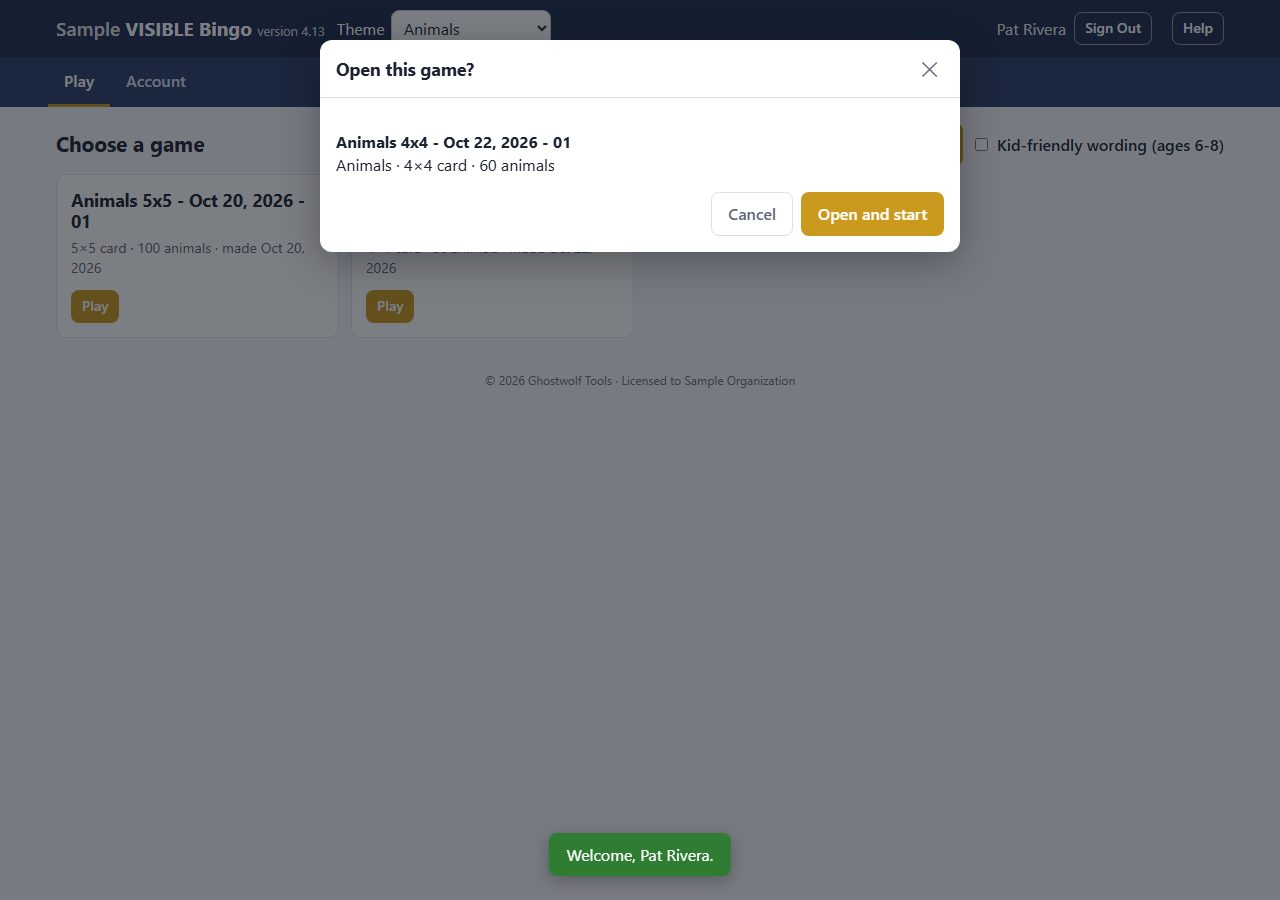
Every printed card has a small code in its bottom right corner, labelled Caller: scan to open this game. Tap Scan a card to open its game on the Play screen (or Scan a Card on the calling screen), allow the camera, and hold the card's bottom code in front of it. The game's name, card size and entry count appear for you to check; tap Open and start to begin calling it, so you never have to pick the game from the list. If another game is being called, the box says opening this one ends it, and nothing changes until you tap the button. You can also scan the bottom code with the phone's own camera app: it opens VISIBLE Bingo, asks you to sign in, and shows the same box. The code at the top of the card is the watch code for players; scanning it here gets a reminder to use the bottom one. If the game was deleted after the cards were printed, you are told it can't be found and nothing opens. Cards printed before this feature have no bottom code; print them again.
Tap Draw (it names the theme, for example Draw Animal). The entry shows big with its ID, its bio to read out, and its tags. Every call is added to the top of Called so far; tap one there to show it again. Each entry comes up once; the button stops when every entry has been called.
Start Over clears the calls and reshuffles the same game, for the next round with the same cards. End Game closes it (and its watch code); you can play it again any time. Starting a different game ends the one being called, so the app asks first.
Choose this round's Win pattern: Single Line, Four Corners, X (both diagonals), Postage Stamp, Frame / Border, or Blackout (full card). The diagram shows the shape. The app doesn't check anyone's card: players call out, and you check the card by eye against Called so far.
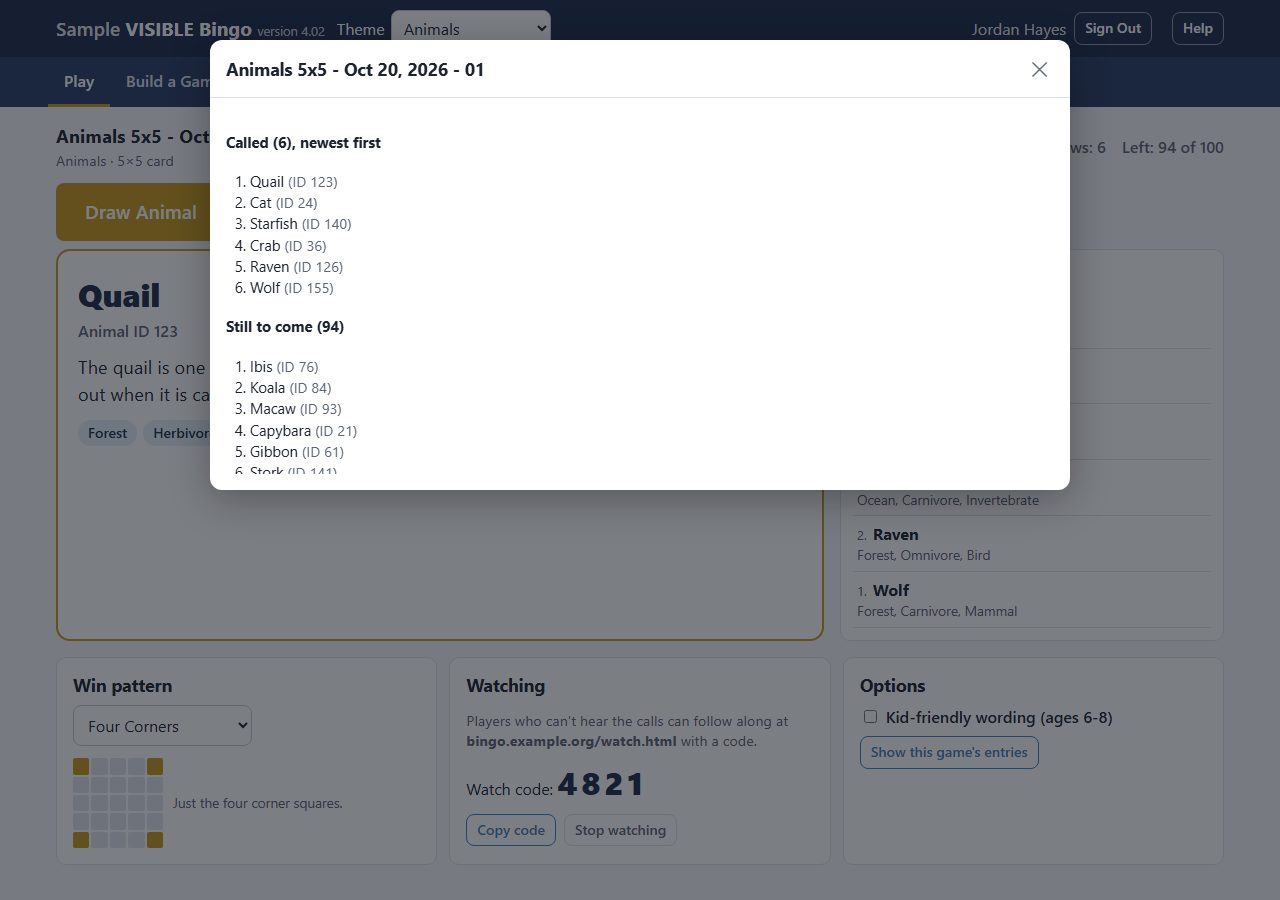
For players who can't hear the calls, tap Let viewers watch. A 4-digit Watch code appears; read it out or write it up, and players enter it on The watch page: following on a phone. Calls made before you turned it on show up for them too. Copy code copies it; Stop watching ends it for everyone following.
The game being called is remembered on this device. Sign back in and the calling screen comes back where you left off, with the same calls and watch code.
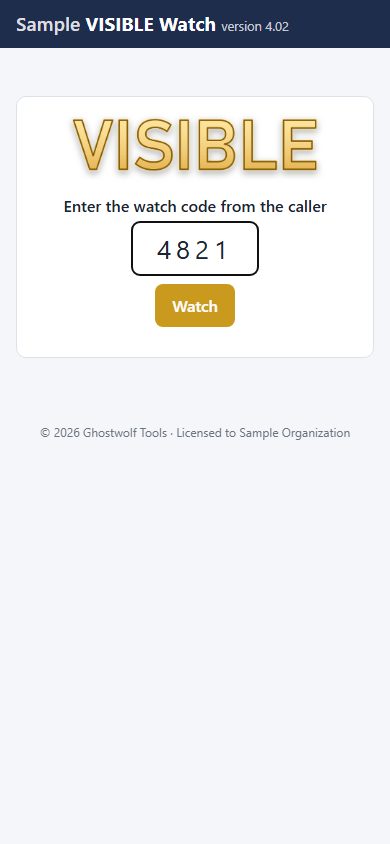
Players open the watch page by scanning the QR code on their card, or by going to the app's address followed by /watch.html. No sign-in is needed. They type the 4-digit code from the caller and tap Watch.
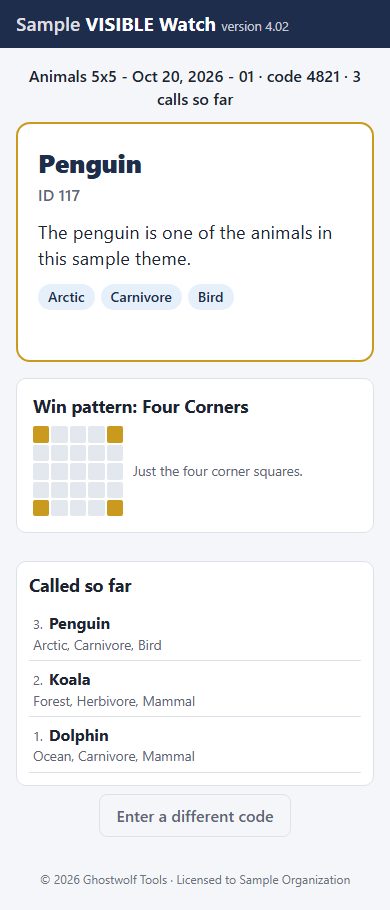
The latest call shows big, with its ID, bio and tags, along with the win pattern and the full list of calls so far. It updates by itself every few seconds. If the caller ends the game or stops watching, the page says the game isn't being called and asks for a code again. Enter a different code starts over.
Admins only: choosing a game's card size and entries.
Saved games
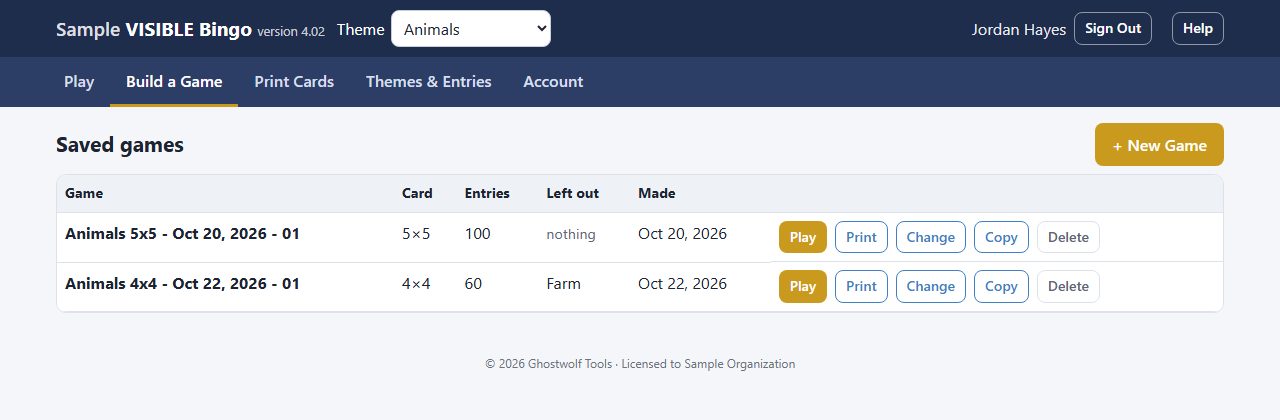
Build a Game lists the theme's saved games with their card size, number of entries, any tags left out, and the date. Each row has Play, Print, Change, Copy and Delete.
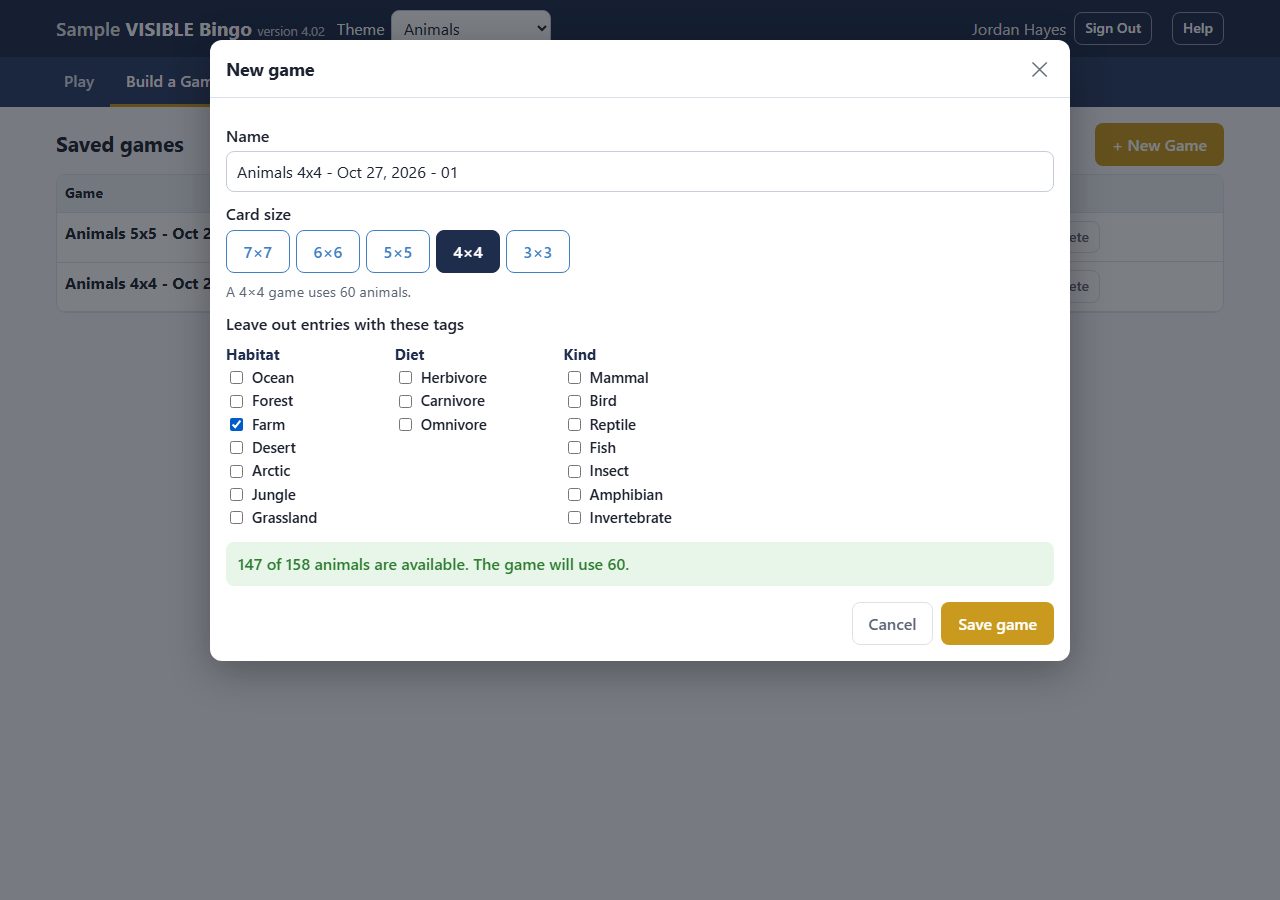
Tap + New Game. Pick the Card size: a 7×7 game uses 250 entries, 6×6 uses 180, 5×5 uses 100, 4×4 uses 60 and 3×3 uses 30. Tick any tags under Leave out entries with these tags to keep those entries out of this game. The green box says how many entries are available; if there are fewer than the size needs, the game uses them all, as long as there are enough to fill a card. The name fills itself in (theme, size, date and a number). Tap Save game.
Change renames a game; changing only the name keeps the same entries, so cards already printed still match. Changing the size or the left-out tags draws a new set of entries, so print new cards after. Copy starts a new game with the same settings. Delete removes a game after you confirm; cards printed from it can't be called any more.
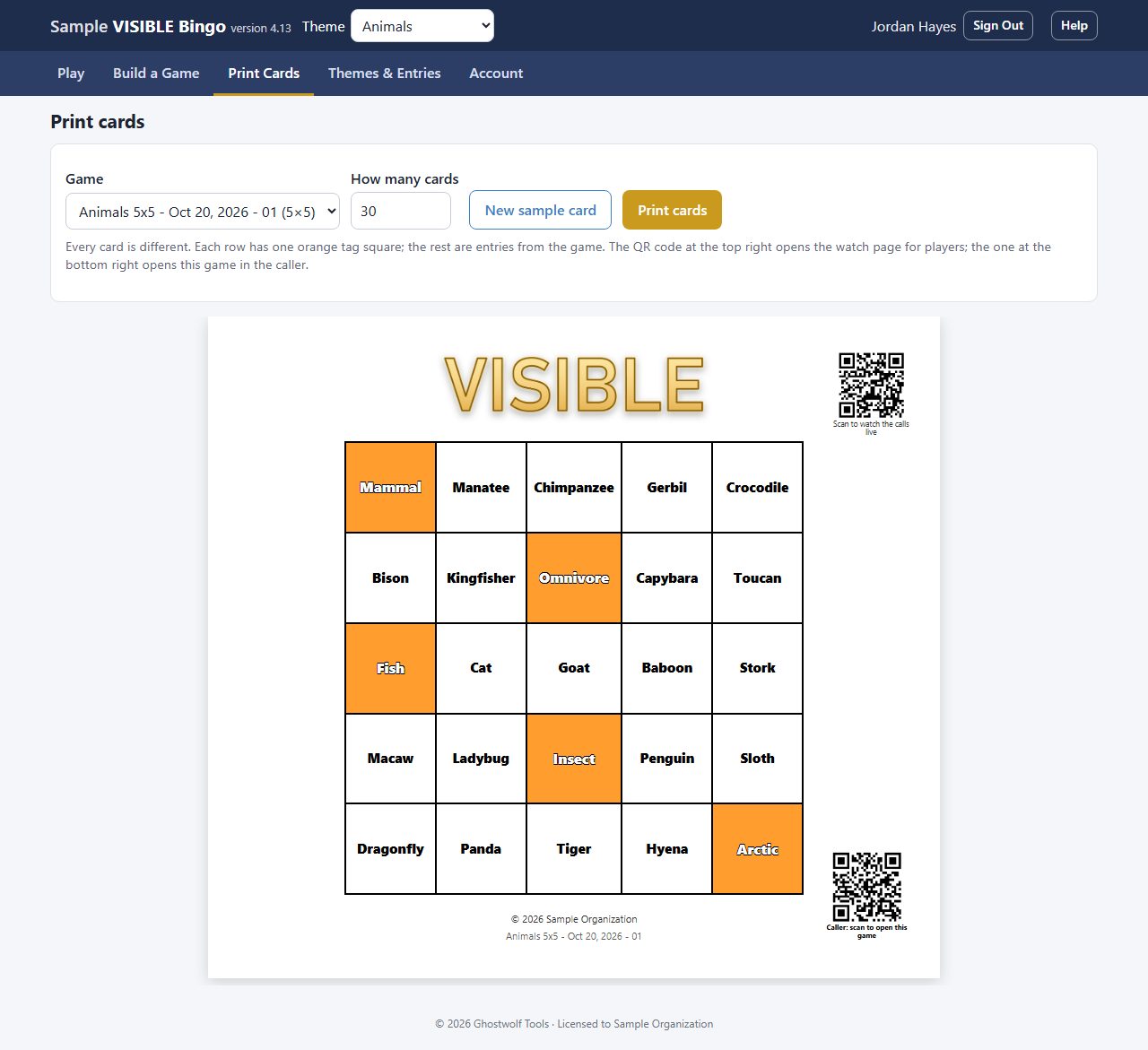
Print Cards (or Print on a game) shows a sample card. Choose the Game and How many cards (up to 500), then tap Print cards and print on letter paper. New sample card shows another sample. Every card is different: each row has one orange tag square, and the other squares are entries from the game. The QR code at the top right opens The watch page: following on a phone for players. A second code in the bottom right corner, Caller: scan to open this game, opens that game in the caller (Scanning a card to open its game). The game's name prints at the bottom.
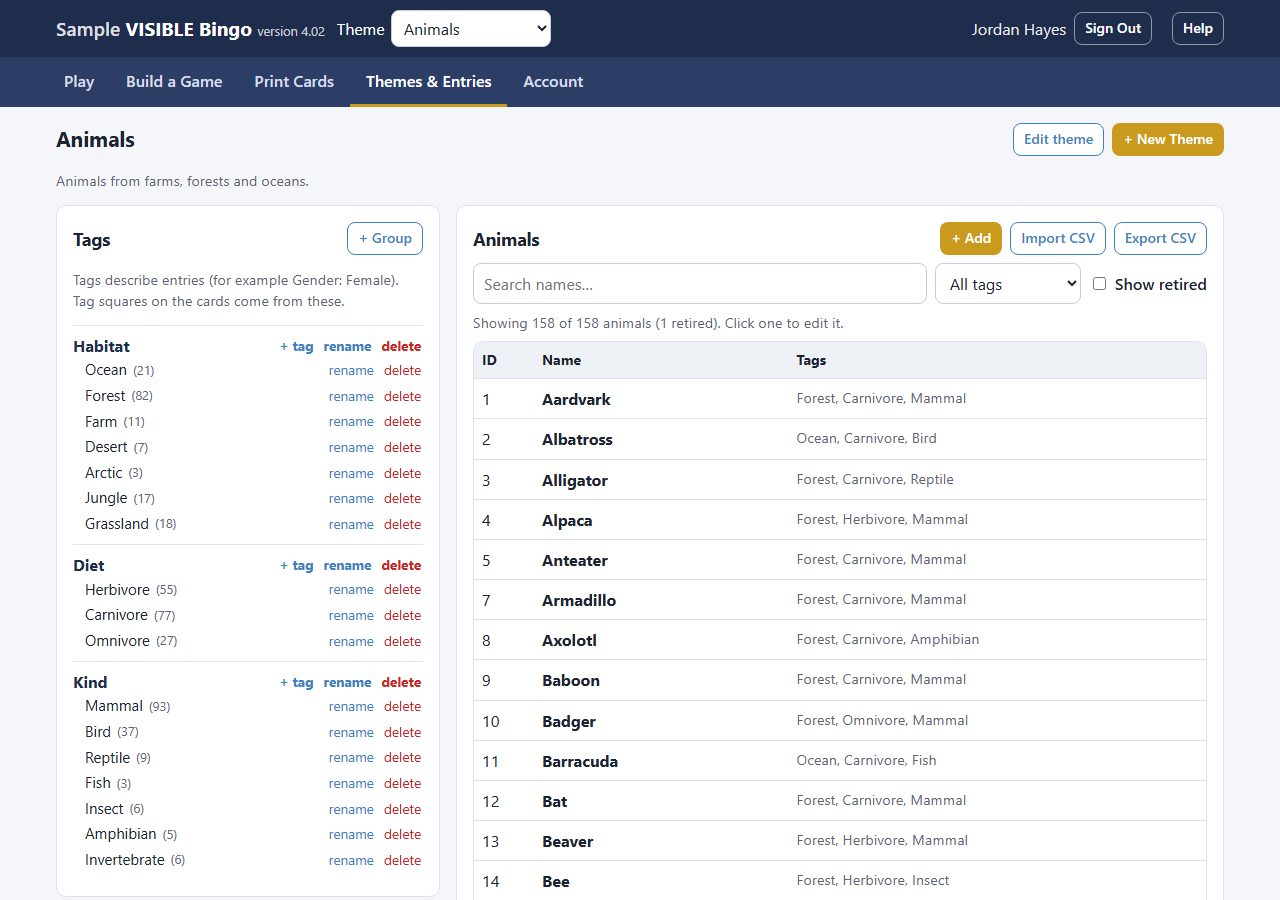
Themes & Entries shows the theme chosen in the header: its Tags on the left and its entries on the right. Tags describe entries and are grouped (for example Habitat: Ocean or Diet: Herbivore); the tag squares on the cards come from them. + Group adds a tag group; in each group, + tag adds a tag, and rename and delete change them. The number beside a tag counts its entries.
Search entries by name or ID, show only the ones with one tag, or tick Show retired to include retired ones (Adding and changing entries). The line above the list counts them.
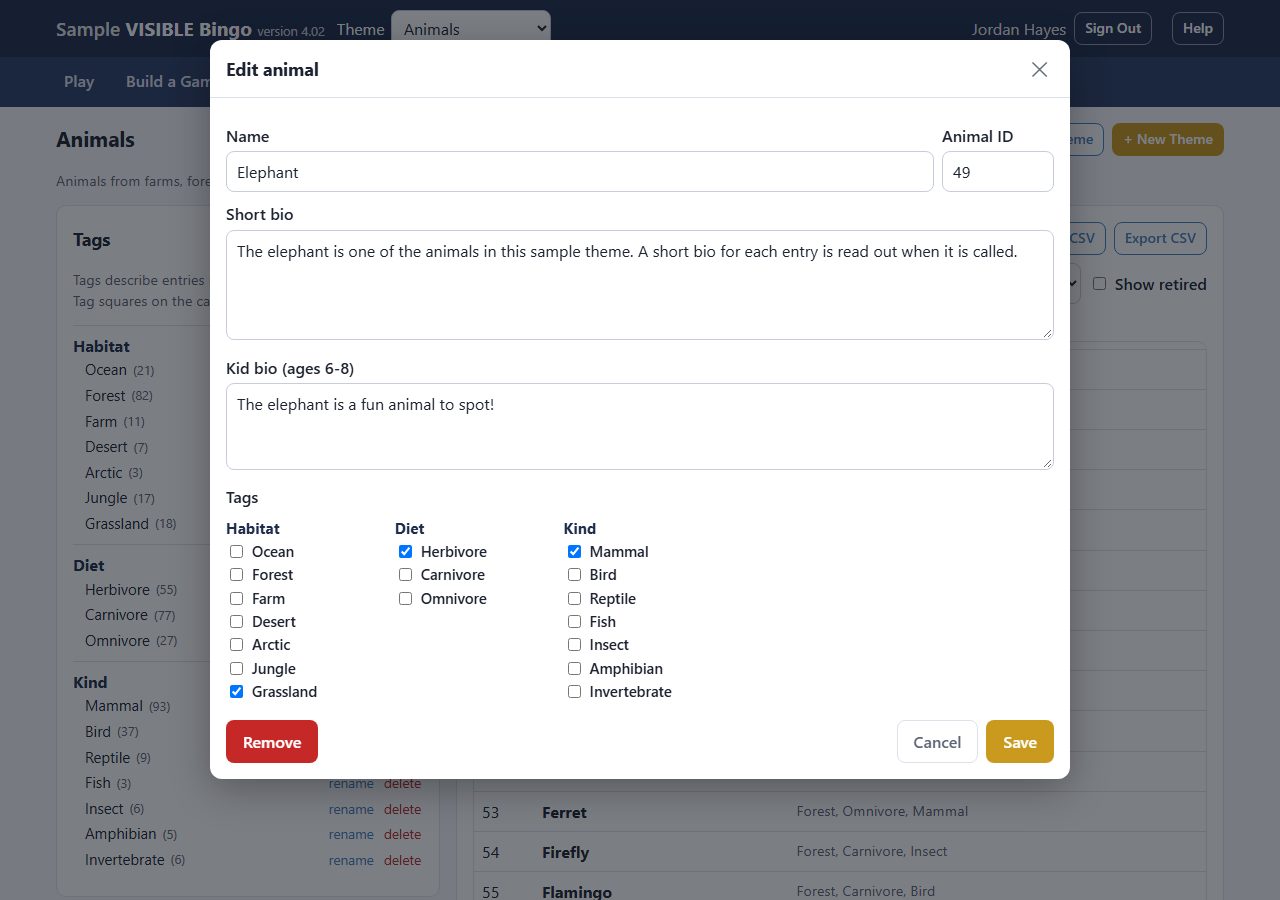
Tap + Add, or click an entry to change it. Each entry has a Name, an ID (left blank, it takes the next number), a Short bio read out when it is called, a Kid bio for kid-friendly wording, and its tags. Remove deletes an entry that no saved game uses; if a game uses it, it is retired instead: those games keep it, but new games don't pick it. Bring back puts a retired entry back in use.
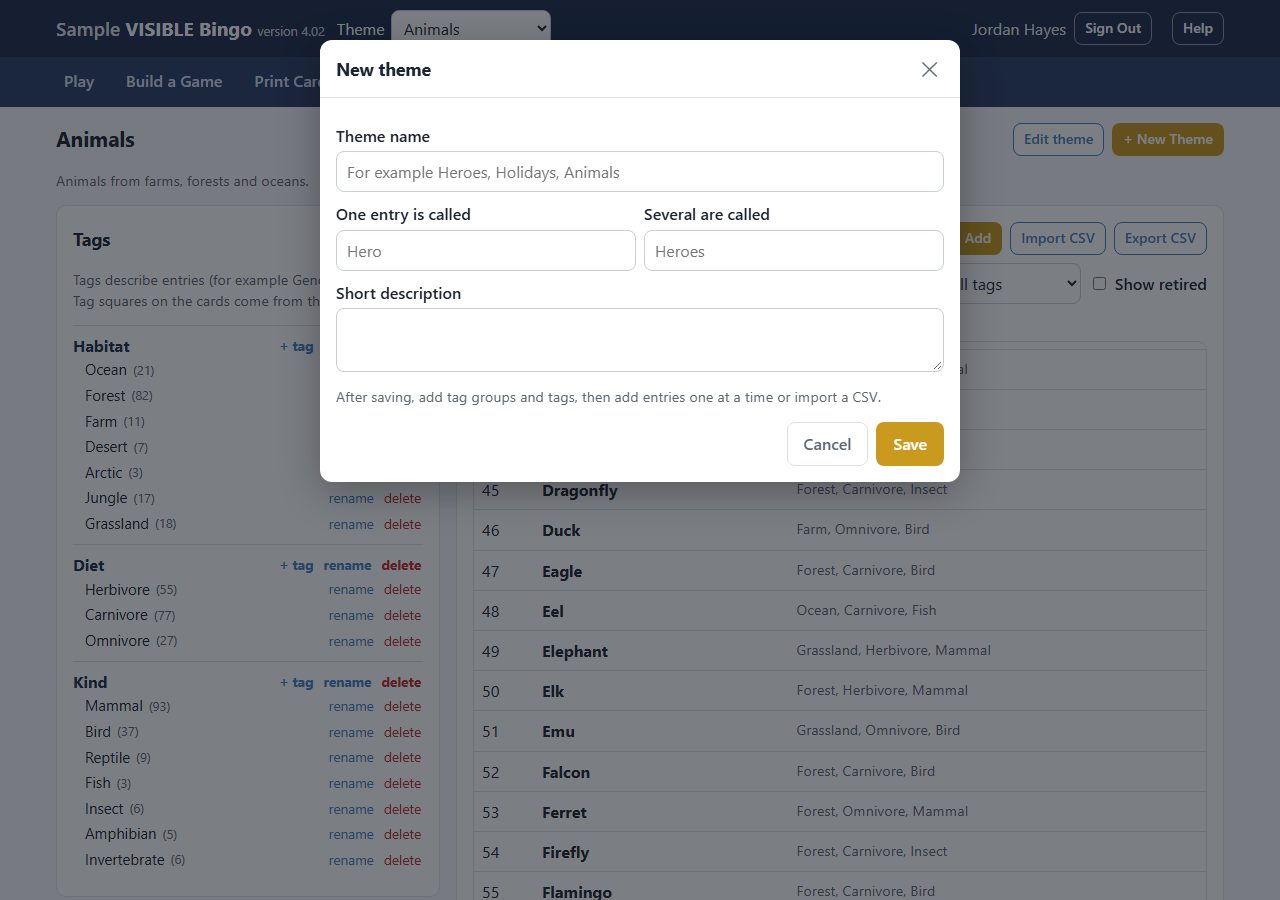
Tap + New Theme, give it a name and what one entry and several are called (for example Hero and Heroes; the app uses these words on its buttons), and a short description. Then add tag groups, tags and entries. Edit theme changes it or deletes it; deleting removes its entries, tags and games, so you type the theme's name to confirm.
Export CSV saves the theme's entries to a spreadsheet file. Import CSV reads one with the columns number, name, bio, kid_bio, tags; only name is required. Tags are written Group: Tag; Group: Tag, and new ones are created. A row whose number matches an entry updates it; a row without a number is added. The app shows what will change and asks first.